

DNS Records for Email — Complete Map
SPF is one of eight DNS records that affect email deliverability. This diagram shows where each record lives, what type it is, and whether it's required.
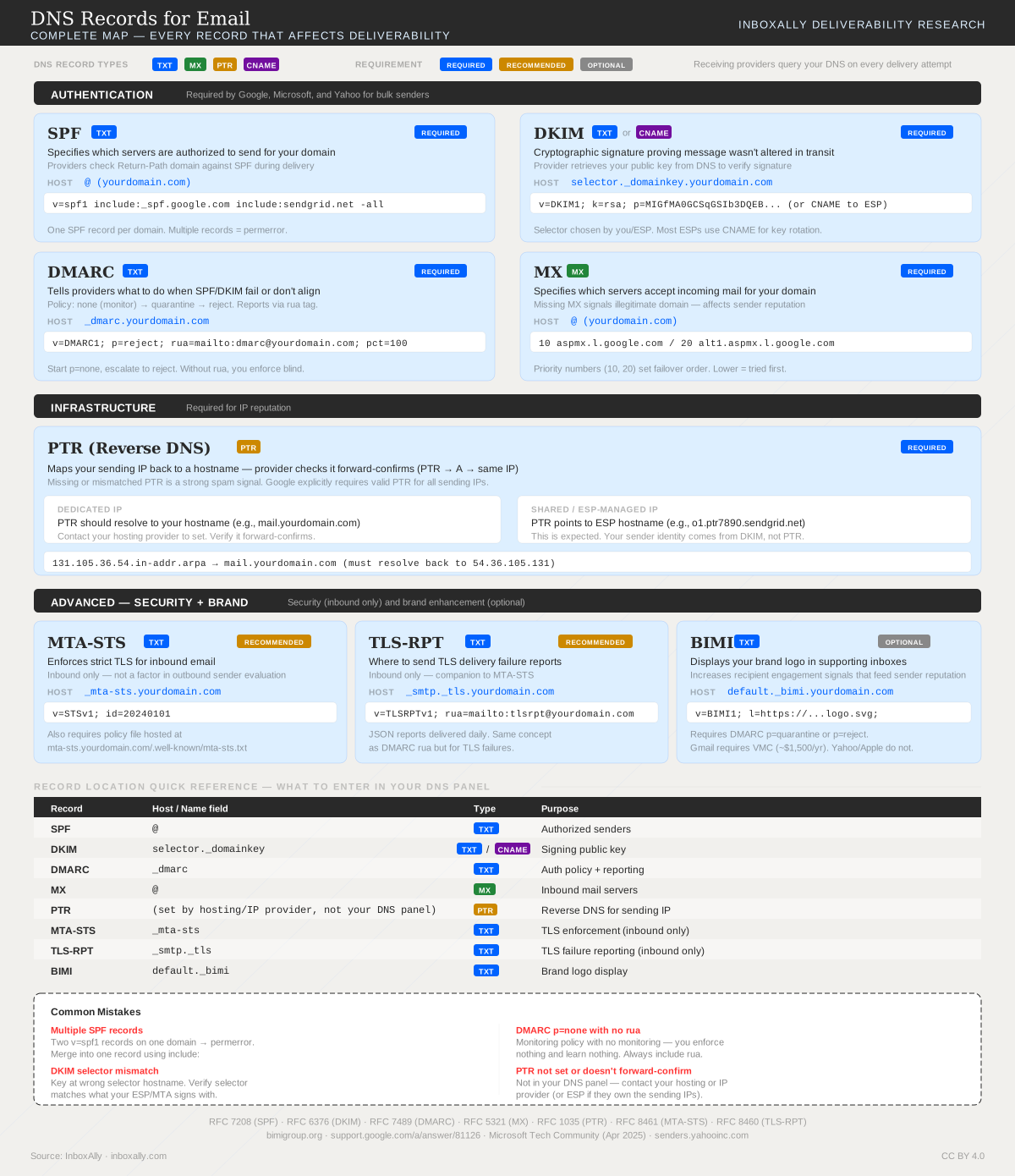
SPF record setup is the process of publishing a Sender Policy Framework (SPF) TXT record in DNS that tells receiving mail servers which sending servers are authorized to send email for your domain, helping prevent spoofing and improving inbox placement. In this guide, you’ll first locate any existing SPF TXT record, then build or merge a correct SPF policy that includes every legitimate sender (your mailbox provider, marketing platform, transactional service), publish the final record in DNS, and **verify that messages return an “SPF=pass” result.
A few constraints matter from the start: you can have only one SPF record per domain (multiple SPF TXT records cause SPF to fail), and SPF evaluations are limited to 10 DNS lookups—too many include: statements or redirects can trigger PermError and hurt deliverability. Done correctly, SPF reduces authentication failures that lead to spam filtering. For example, a valid SPF record typically starts like:
v=spf1 include:example-sender.com ~all
What an SPF record is (Sender Policy Framework) and why you need one
SPF (Sender Policy Framework) is an email authentication method that tells receiving mail servers which sending sources are allowed to send mail for your domain. You publish this policy as a DNS SPF TXT record. When you send an email, the recipient’s server looks up your domain’s SPF record and checks whether the sending IP address (or sending host) is on the approved list. If it is, SPF can pass; if not, it can fail.
A simple SPF TXT record looks like this:
example.com. TXT "v=spf1 ip4:203.0.113.10 include:_spf.yourprovider.com -all"
What SPF does (and doesn’t do)
SPF helps:
- Reduce spoofing of your domain by blocking unauthorized senders.
- Improve inbox placement by giving mailbox providers a clear authorization signal (especially when combined with DKIM and DMARC).
- Support more reliable deliverability testing — tools like InboxAlly’s Domain Reports can track SPF pass rates over time.
SPF does not:
- Encrypt email content (it’s not a privacy mechanism).
- Prove message integrity (it doesn’t guarantee the message wasn’t altered). That’s DKIM’s job.
- Authenticate the visible From: header by itself.
How SPF is evaluated (MAIL FROM vs From:) and why alignment matters
SPF is evaluated against the domain used in the SMTP envelope, commonly shown as the Return-Path (also called MAIL FROM). This domain can be different from the human-visible From: domain in the email header.
- If the sending IP is authorized by the Return-Path domain’s SPF record → SPF can pass.
- DMARC later checks whether the authenticated domain (SPF and/or DKIM) aligns with the visible From: domain.
That’s why SPF can “pass” but still fail DMARC if the Return-Path domain doesn’t align. For next steps, see How to Configure DMARC Monitoring with InboxAlly.
Anatomy of an SPF TXT record: mechanisms, qualifiers, and the “all” rule
An SPF TXT record is a single policy string evaluated by receiving mail servers to decide whether the connecting IP is allowed to send for your domain.
v=spf1 and common mechanisms (with examples)
Every SPF record starts with v=spf1 (the version tag). After that, you list mechanisms that describe allowed senders:
include:Authorizes a third party’s SPF policy (common for ESPs and CRMs). Use when a vendor tells you to “add this include.”v=spf1 include:_spf.example-sender.com ~allaAuthorizes the IP(s) returned by your domain’s A/AAAA record (or a specified hostname). Use when your web/app server also sends mail.v=spf1 a ~allmxAuthorizes the IP(s) of your domain’s MX hosts. Use if your inbound mail servers also send outbound mail.v=spf1 mx ~allip4:/ip6:Authorizes specific sending IPs or CIDR ranges. Use for dedicated IPs, on-prem servers, or known relays.v=spf1 ip4:203.0.113.10 ip4:203.0.113.0/24 ip6:2001:db8::/32 ~allexists:Performs a DNS lookup and matches if a domain exists. Use only for advanced, dynamic authorization patterns (it’s easy to misconfigure).v=spf1 exists:%{i}._spf.yourdomain.com ~all
Qualifiers: +, -, ~, ? (and rollout guidance)
Each mechanism can be prefixed with a qualifier:
+Pass (default):+ais the same asa.-Fail: Explicitly unauthorized (hard fail).~Softfail: “Not authorized, but don’t outright reject.”?Neutral: No assertion.
Practical guidance:
- Start with
~allduring rollout while you confirm every legitimate sender is included (especially if multiple teams/tools send mail). - Move to
-allonce you’ve verified SPF pass rates and you’re confident nothing legitimate is missing. You can use Domain Reports in the InboxAlly app to confirm consistent SPF alignment before tightening policy. - Never use
+all. It effectively authorizes any server on the internet to send as your domain, enabling spoofing and damaging deliverability.
The all mechanism, evaluation order, and result codes
SPF is evaluated left-to-right. The first matching mechanism determines the result. all matches everything, so it must be last:
v=spf1 ip4:203.0.113.10 include:_spf.example-sender.com -all
Common SPF results you’ll see in headers/logs:
- pass (authorized)
- fail (hard fail, typically from
-all) - softfail (from
~all) - neutral (from
?allor?qualifier) - permerror (permanent error, e.g., multiple SPF records or >10 DNS lookups)
- temperror (temporary DNS failure/timeouts)
DNS lookup counting (why includes can explode)
SPF has a 10-DNS-lookup limit. These mechanisms trigger lookups: include, a, mx, exists (and redirect, if used). ip4/ip6 do not.
Includes are the usual culprit: each include: may itself contain more include, a, and mx lookups, quickly exceeding the limit and causing permerror. Keep includes minimal, remove unused senders, and validate changes before rollout.
Step-by-step SPF record setup: find your current SPF, create/merge, and publish in DNS
1) Find your current SPF record (TXT) with dig or nslookup
SPF is published as a TXT record, usually at the root of your domain (example.com). Start by checking what’s already live.
macOS / Linux (dig):
dig +short TXT example.com
dig +short TXT _spf.example.com
Windows (nslookup):
nslookup -type=TXT example.com
nslookup -type=TXT _spf.example.com
How to interpret results
- You’re looking for a TXT string that starts with
v=spf1. - Example output:
"v=spf1 include:_spf.google.com ip4:203.0.113.10 ~all"
- Common scenarios:
- No SPF found: no TXT record contains
v=spf1→ you’ll create one. - One SPF found: great → you’ll update/merge it as needed.
- Multiple SPF records found: problem → receivers may treat this as an SPF PermError. You must consolidate to one SPF record at the same hostname.
Tip: If you use subdomains for sending (e.g., mail.example.com), check SPF there too. SPF is evaluated on the RFC5321.MailFrom/Return-Path domain, which may differ from your visible “From” domain.
2) Inventory your real sending sources (then map them to SPF mechanisms)
Before writing SPF, list every system that sends mail “from” your domain:
- Mailbox providers: Google Workspace, Microsoft 365
- Website/app servers: web host, VPS, on-prem server (contact your dev/IT team for outbound IPs)
- Marketing/CRM platforms: newsletters, sales automation
- Transactional providers: receipts, password resets, notifications
- Support tools: ticketing/helpdesk sending as your domain
Then map each source to an SPF mechanism:
include:for vendors that publish their own SPF (most SaaS senders)ip4:/ip6:for fixed outbound IPs you controla/mxonly if your domain’s A/MX hosts actually send mail (often unnecessary)
Example “starter” SPF (replace with your real sources):
v=spf1 include:_spf.google.com ip4:203.0.113.10 ~all
Qualifiers matter:
~all(softfail) is a common safe starting point during rollout.-all(fail) is stricter; use when you’re confident all senders are authorized.
3) Merge safely if an SPF record already exists (one record only)
If you already have SPF, edit the existing record—don’t add a second one.
Safe merge rules
- Keep
v=spf1first - Keep the
allmechanism (~allor-all) last - Add new senders as additional
include:and/orip4:/ip6:mechanisms - Remove duplicates (repeating the same
includewastes DNS lookups) - Avoid overly broad mechanisms unless you truly need them
Before (existing):
v=spf1 include:_spf.google.com ~all
After (merged with a server IP and another sender include):
v=spf1 include:_spf.google.com include:spf.vendor-example.net ip4:203.0.113.10 ~all
Note: SPF has a 10 DNS-lookup limit (includes, a, mx, redirect). If you’re close to the limit, remove unused includes first.
4) Publish the SPF TXT record in DNS (generic steps)
In your DNS host (registrar, CDN/DNS provider, or managed DNS):
- Open DNS management for the domain you’re authenticating.
- Add or edit a TXT record.
- Set the Host/Name:
- Use
@or leave blank to target the root (example.com), depending on the DNS UI.
- Use
- Set the Value to your SPF string (single line):
v=spf1 include:_spf.google.com ip4:203.0.113.10 ~all- Some providers auto-quote; others don’t. Either is fine as long as the published TXT content is correct.
- Set TTL:
- 300–3600 seconds is typical. Lower TTL helps faster iteration during setup.
- Save and wait for propagation:
- Many changes appear within minutes, but global propagation can take up to 24–48 hours depending on TTL and caching.
After publishing, re-run dig/nslookup to confirm the live record matches what you intended. You can also verify SPF status in Domain Reports in the InboxAlly app — it includes an SPF validation check. Once SPF is stable, continue with DKIM and DMARC (see How to Configure DMARC Monitoring with InboxAlly).
Adding common ESPs and third-party senders to your SPF record (real examples)
When you send mail from multiple systems (your mailbox provider, a marketing platform, a transactional sender, and maybe a web server), they must all be authorized in one SPF TXT record per domain/hostname.
Ready-to-use include: snippets (verify vendor docs)
Use the provider’s published SPF include(s) and keep them up to date:
- Google Workspace:
include:_spf.google.com - Microsoft 365:
include:spf.protection.outlook.com - Mailchimp:
include:servers.mcsv.net - SendGrid:
include:sendgrid.net
Always confirm the current include domains in the vendor’s documentation—providers occasionally change or add includes, and some accounts require additional entries (especially for dedicated IPs).
Complete SPF TXT record examples (copy/paste patterns)
1) Google Workspace only
example.com. TXT "v=spf1 include:_spf.google.com ~all"
2) Microsoft 365 + website server IP
example.com. TXT "v=spf1 include:spf.protection.outlook.com ip4:203.0.113.10 ~all"
3) Google Workspace + Mailchimp
example.com. TXT "v=spf1 include:_spf.google.com include:servers.mcsv.net ~all"
4) Microsoft 365 + SendGrid + dedicated IPs
example.com. TXT "v=spf1 include:spf.protection.outlook.com include:sendgrid.net ip4:198.51.100.25 ip4:198.51.100.26 -all"
Adding multiple services without breaking SPF
- Keep a single SPF record per hostname (e.g., one for
example.com, one formail.example.comif needed). Multiple SPF TXT records on the same name can cause SPF failures. - Order for readability: start with
v=spf1, theninclude:entries, then explicitip4:/ip6:, end with~all(soft fail) or-all(hard fail). - Minimize includes: remove unused senders and avoid redundant includes. Each
includecan trigger additional DNS lookups. - Watch the 10-DNS-lookup limit: too many includes can cause
PermError. If you’re close, reduce includes or consider SPF flattening.
Edge cases: subdomains, marketing domains, and return-path
- Marketing subdomain (recommended): if you send campaigns as
news@mail.example.com, publish SPF on that subdomain:mail.example.com TXT "v=spf1 include:servers.mcsv.net ~all"
- Separate bounce/return-path domain: many senders use a dedicated bounce domain (e.g.,
bounces.example.com). Publish SPF on the bounce domain too if it sends mail or is used for alignment. - When to publish SPF on subdomains: any hostname that appears in the RFC5321.MailFrom/Return-Path or is used as the visible From domain for a distinct stream should have its own SPF record. For best results, pair SPF with DKIM/DMARC (see How to Configure DMARC Monitoring with InboxAlly).
Troubleshooting SPF: multiple records, missing includes, and “too many DNS lookups” (PermError)
Can I have multiple SPF records on one domain?
No. A domain must publish one SPF policy (one v=spf1 string) on the same host. If you publish multiple SPF TXT records (for example, two separate TXT values that both start with v=spf1), many receivers treat the result as SPF PermError because SPF evaluation becomes ambiguous.
Fix: merge into a single TXT record that authorizes all legitimate senders.
# ✅ One SPF record (merged)
@  TXT  "v=spf1 include:_spf.google.com include:spf.yourvendor.com ip4:203.0.113.10 -all"
Tip: Keep only one v=spf1 record at the root (@) unless you intentionally send from a subdomain (then publish SPF on that subdomain host).
Common mistakes (and what they look like)
Missing
includefor a third-party sender- Symptom: Some platforms pass SPF, but a specific tool shows
SPF=failorneutral. - Fix: Add the vendor’s required
include:(or IP ranges) to your single SPF record.
- Symptom: Some platforms pass SPF, but a specific tool shows
Using
+all- Symptom: SPF “passes” for almost anything, but deliverability suffers and spoofing risk increases.
- Fix: Use
~all(softfail) during testing, then move to-allwhen confident.
Putting
allin the middle- Symptom: Anything after
allis ignored; legitimate senders still fail. - Fix: Ensure
~all/-allis the last mechanism.
- Symptom: Anything after
Publishing SPF on the wrong host
- Symptom: SPF fails for
@yourdomain.combecause the record was added towwwor another hostname. - Fix: Publish at the correct host (
@for the root domain;subdomainfor subdomain mail).
- Symptom: SPF fails for
Forgetting IPv6 (
ip6)- Symptom: Mail sent from IPv6-enabled infrastructure fails SPF intermittently.
- Fix: Add required
ip6:entries when your sender uses IPv6.
Stale vendors / old includes
- Symptom: You hit lookup limits or authorize senders you no longer use.
- Fix: Remove unused
include:mechanisms.
“SPF PermError: too many DNS lookups” explained
SPF has a hard limit of 10 DNS lookups during evaluation. These mechanisms count when they trigger DNS queries: include, a, mx, ptr (avoid), exists, and redirect. Lookups can multiply via nested includes (an include that includes others).
How to diagnose lookup usage
- Retrieve your SPF TXT record (
dig txt yourdomain.com). - Expand each
include:andredirect=to see what they reference. - Count total lookups across the full chain (including nested records).
- Check Domain Reports in the InboxAlly app to confirm SPF pass rates aren’t dropping or showing PermError spikes after changes.
How to stay under the 10-lookup limit
- Remove unused includes (old CRMs, legacy ESPs, retired sending services).
- Avoid nested includes where possible; prefer simpler, direct authorization.
- Replace includes with
ip4/ip6when a vendor provides stable IP ranges (reduces lookups). - Use SPF flattening to convert include chains into IP lists.
- Caution: Flattened IPs change over time—set a maintenance cadence to refresh, or you may break SPF unexpectedly.
After making changes, use Domain Reports in the InboxAlly app to validate that SPF consistently returns Pass, not PermError.
How to verify SPF is working (and what to do next with DKIM/DMARC)
1) Verification workflow (DNS → external tests)
- Confirm DNS is publishing the SPF TXT record
- Look up the TXT record on the exact domain you send from (root domain or subdomain).
- You should see one SPF record that starts with
v=spf1. - Example:
yourdomain.com. TXT "v=spf1 include:_spf.google.com ip4:203.0.113.10 ~all"
- Test the record
- Use Domain Reports in the InboxAlly app — it includes an SPF validation check that confirms your record is correctly published and passing.
- You can also send a test email and inspect the headers (see step 2 below).
How to interpret results in practice
- Pass: The sending IP is authorized by your SPF record. This is the expected outcome.
- Softfail (
~): The IP is not authorized, but the policy is “accept but mark.” Many receivers treat repeated softfails as suspicious—fix authorization gaps. - Fail (
-): The IP is not authorized and the policy is “reject.” If legitimate mail fails, you’re missing aninclude,ip4/ip6,a, ormxmechanism. - PermError: SPF evaluation broke (commonly too many DNS lookups, multiple SPF records, or syntax errors). Receivers may treat this like a fail—reduce lookups and ensure a single SPF TXT record.
2) Validate in real email headers (the definitive check)
Send a test email to a mailbox you control, then open the full headers. Look for:
Received-SPF: pass|softfail|fail|permerror ...Authentication-Results: ... spf=pass|fail ... dkim=... dmarc=...
Confirm the correct domain is being checked
- SPF is evaluated against the envelope-from/Return-Path domain (not always the visible “From” domain).
- In headers, verify:
Return-Path: <bounce@yourdomain.com>(or your ESP’s bounce domain)Authentication-Results: ... spf=pass (domain of bounce@yourdomain.com)
3) Track SPF pass rates over time
Authentication issues can undermine your deliverability even when everything else is right. Use Domain Reports in the InboxAlly app to track SPF pass rates, spot sudden drops by sender or source, and validate fixes after DNS changes. If you don’t have an account yet, start a free trial to baseline your authentication status.
4) SPF isn’t enough: what to do next
- Set up DMARC visibility: How to Configure DMARC Monitoring with InboxAlly
- Add brand indicators after DMARC enforcement: What is BIMI and how to set it up
- Ensure infrastructure alignment: What is Reverse DNS and why is it important