

DNS Records for Email — Complete Map
DKIM is one of eight DNS records that affect email deliverability. This diagram shows where each record lives, what type it is, and whether it's required.
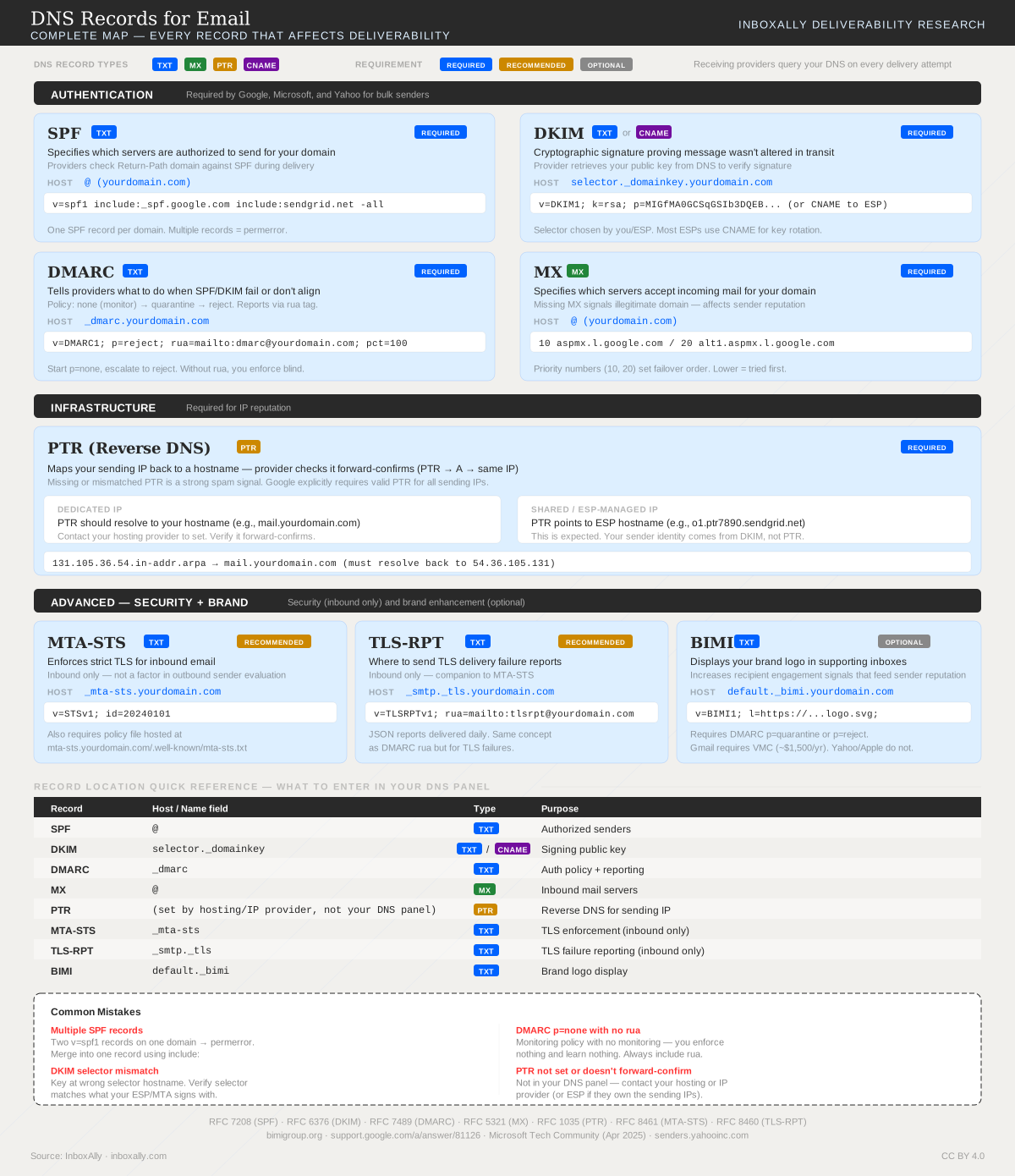
DKIM setup is one of the fastest ways to increase inbox placement because it proves your messages are authentic. DKIM (DomainKeys Identified Mail) adds a cryptographic signature to each outbound email using a private key held by your sender. Receiving servers then fetch your public key from a DKIM DNS record and verify two things: the message really came from your domain and it wasn’t altered in transit.
That verification is a major deliverability trust signal. A valid DKIM signature reduces successful spoofing and phishing attempts against your domain, and it also helps your mail pass DMARC (DKIM alignment is a core DMARC requirement). DKIM works best alongside SPF—think of SPF as “who is allowed to send,” and DKIM as “this specific message is intact and signed.” If you’re following our SPF companion guide, DKIM is the next essential authentication layer.
In this tutorial, you’ll complete a practical DKIM setup end-to-end:
- Generate a 2048-bit DKIM key pair in your ESP (and note the selector name).
- Publish the provided DKIM DNS record as a TXT or CNAME in your domain’s DNS.
- Enable DKIM signing in the ESP once DNS is in place.
- Verify DKIM is working by checking message headers (look for
DKIM-Signature) and confirming the record with a DKIM lookup tool.
What DKIM does (and how it improves deliverability)
DomainKeys Identified Mail (DKIM) is an email authentication method that adds a cryptographic signature to each outgoing message. Receiving mailbox providers use that signature to confirm the email is legitimately associated with your domain and hasn’t been altered in transit.
What DKIM protects (and what it doesn’t)
DKIM primarily protects:
- Message integrity: the signed parts of the header/body can’t be modified without breaking the DKIM signature.
- Domain-level authentication: the receiver can verify the message was signed using a private key that matches the public key published in your DKIM DNS record.
DKIM does not:
- Encrypt email content (anyone who can access the message can still read it).
- Guarantee inbox placement by itself. DKIM is a prerequisite for trust, but inboxing also depends on reputation, engagement, content, and complaint rates.
How DKIM improves deliverability
Mailbox providers treat DKIM as a strong signal that you control your sending identity. When DKIM passes consistently, providers can:
- Build domain reputation tied to your authenticated domain (not just an IP).
- Reduce spoofing/phishing risk by making it harder for attackers to impersonate your domain without access to your DKIM private key.
- Increase confidence in your mailstream, which supports better filtering outcomes over time.
DKIM vs SPF (and why you need both)
SPF and DKIM solve different problems:
- SPF validates where an email is allowed to come from (authorized sending IPs).
- DKIM validates what was sent (integrity) and who signed it (domain authentication).
Best practice is to publish both so receivers have multiple ways to authenticate your mail, improving resilience across forwarding and different sending paths.
DKIM’s role in DMARC and BIMI
DKIM is a key input to DMARC alignment and enforcement—without DKIM (or SPF) passing and aligning, DMARC can’t reliably protect your domain. See How to Configure DMARC Monitoring with InboxAlly.
DKIM is also a prerequisite for BIMI (brand logos in supported inboxes). Learn more in What is BIMI and how to set it up.
How DKIM works: keys, signatures, and DNS records
Mechanics: keys + signatures in plain terms
DomainKeys Identified Mail (DKIM) adds a tamper-evident signature to each outgoing message:
- Your sending system uses a private key to create a DKIM signature over:
- selected headers (like
From,To,Subject,Date) - and the message body (or a canonicalized form of it)
- selected headers (like
- The signature is inserted into the email as a
DKIM-Signature:header. - When the recipient’s mail server receives the message, it:
- reads the selector and domain from the
DKIM-Signatureheader - looks up the matching public key in DNS
- verifies the signature to confirm the message wasn’t altered in transit and that the signer controlled the domain’s DKIM key.
- reads the selector and domain from the
Anatomy of a DKIM DNS record (selector, name, and tags)
A DKIM public key is published as a DNS TXT record at:
<selector>._domainkey.<domain>
Where:
- selector = a label like
s1,s2,k1, or provider-specific names (you can have multiple selectors for rotation) _domainkey= fixed namespace for DKIM- domain = the domain you’re authenticating
Common TXT tags you’ll see:
v=DKIM1— DKIM versionk=rsa— key type (RSA is most common)p=...— the Base64-encoded public key (no spaces/quotes inside the key)t=s— optional; “strict” mode (limits subdomain signing)h=sha256— optional; acceptable hash algorithms
Example DKIM record:
s1._domainkey.example.com. 3600 IN TXT "v=DKIM1; k=rsa; p=MIIBIjANBgkqhkiG9w0BAQEFAAOCAQ8A...IDAQAB"
What happens during verification (pass/fail/none)
Receivers typically report one of these outcomes:
- pass: signature validates with the DNS public key.
- fail: signature is present but doesn’t validate.
- none: no DKIM signature found (or no usable key record exists).
Common failure reasons:
- Body modified after signing (footers added by gateways, broken line wrapping, link rewriting).
- Wrong key/selector (signing with
s1but DNS publishess2, or key was rotated without updating DNS). - Missing/invalid DNS record (typos, wrong host name, TXT split incorrectly, propagation not complete).
What receivers do with failures depends on their policies and your DMARC settings. Many will downgrade trust, route to spam, or reject when DMARC requires it.
Selectors and key length: getting DKIM right the first time
What a DKIM selector is (and why you may have more than one)
A DKIM selector is the label that tells receivers which public key to fetch from DNS to verify a DKIM signature. You’ll see selectors like s1, s2, google, or k1. The selector becomes part of the DKIM DNS hostname:
<selector>._domainkey.<domain>
Example:
s1._domainkey.example.com TXT "v=DKIM1; k=rsa; p=MIIBI...;"
You might publish multiple selectors to support:
- Key rotation (publish
s2before retirings1) - Multiple sending systems/ESPs (each signs with its own selector)
- Separate streams (marketing vs. transactional) for cleaner operations and audits
Key length guidance: 1024 vs 2048-bit
Use 2048-bit DKIM keys whenever possible. They’re the modern default and provide stronger cryptographic protection, which supports long-term trust and deliverability.
- 2048-bit: recommended for new DKIM setup; better security posture
- 1024-bit: legacy; sometimes required by older providers or DNS limitations
If you’re stuck on 1024-bit:
- Keep it temporary and document why.
- Plan an upgrade path (new selector + 2048-bit key).
- Validate signing and alignment after changes using Domain Reports in the InboxAlly app.
Operational best practices
- Rotation strategy: rotate on a schedule (e.g., quarterly/biannually) or after incidents. Publish the new selector first, enable signing, then retire the old record.
- Naming conventions: use predictable names like
mktg2026q1ortx-s1to avoid confusion. - Avoid selector collisions: don’t reuse generic selectors across vendors; each sender should have a unique selector per domain.
- Audit-ready records: maintain a simple log (selector, key length, owner system, created/retired dates).
DKIM setup steps (works for any ESP): generate keys, publish DNS, enable signing
DKIM setup follows the same universal workflow across providers: pick the exact domain you’ll send from, generate DKIM keys in your sending platform, publish the DKIM DNS record, then turn on DKIM signing.
1) Choose the sending domain (or subdomain)
- Confirm the From domain you’ll use (e.g.,
example.com) or a dedicated subdomain (e.g.,mail.example.com). - Decide whether you need separate DKIM for different streams (marketing vs transactional). Many ESPs issue multiple selectors (e.g.,
s1,s2)—that’s normal.
2) Generate DKIM keys in your ESP/admin console
- In your ESP, open domain authentication settings and select DKIM.
- Generate keys (prefer 2048-bit when offered).
- Copy the provided DNS record(s). You’ll typically receive either:
- A TXT record containing the public key, or
- A CNAME record pointing to the ESP’s hosted DKIM key.
3) Publish the DKIM DNS record (TXT vs CNAME)
Most DNS providers ask for Name/Host and Value/Target. The “name” is usually the selector plus ._domainkey plus your domain.
TXT pattern (public key stored in your DNS):
Type: TXT
Name/Host: s1._domainkey.example.com
Value: v=DKIM1; k=rsa; p=MIIBIjANBgkqhkiG9w0BAQEFAAOCAQ8A...
TTL: 3600
CNAME pattern (ESP hosts/rotates the key):
Type: CNAME
Name/Host: s1._domainkey.example.com
Target/Value: s1._domainkey.esp-dkim-provider.net
TTL: 3600
Why many ESPs prefer CNAME: it reduces copy/paste errors, avoids TXT length/quoting issues, and lets the ESP rotate keys without requiring you to update DNS.
Host/name formatting gotchas:
- Some DNS UIs auto-append your zone (enter
s1._domainkey, nots1._domainkey.example.com). - Others require the full FQDN. If verification fails, re-check whether your DNS provider appended the domain twice.
- For subdomains, the DKIM name still includes the selector and
_domainkey, but it must match the sending domain (e.g.,s1._domainkey.mail.example.comif you send frommail.example.com).
4) Explicitly enable DKIM signing
Publishing DNS isn’t enough. Back in your ESP, ensure DKIM is enabled/active for the correct domain/subdomain. Some platforms keep signing “off” until they detect the record.
5) Timing, propagation, and validation (pre-flight checklist)
- Propagation: expect 5–60 minutes typically, but allow up to 24 hours depending on DNS and caching.
- TTL: 300–3600 seconds is common. Lower TTL helps during setup; raise later if desired.
Before sending real campaigns:
- SPF record exists for the same sending domain (see your SPF guide).
- DKIM record resolves publicly (TXT returns a key, or CNAME resolves to the target).
- Domain/subdomain matches your From address and ESP configuration.
- DKIM signing toggle is on.
- Plan next steps: DKIM is foundational for DMARC (see How to Configure DMARC Monitoring with InboxAlly) and a prerequisite for BIMI.
Provider-specific examples: Google Workspace, Microsoft 365, and common ESP patterns
Google Workspace (Gmail)
Google Workspace uses a TXT-based DKIM record you generate in the Admin Console.
- In Google Admin Console: Apps → Google Workspace → Gmail → Authenticate email (DKIM).
- Select your domain, then Generate new record.
- Key length: choose 2048-bit.
- Selector: pick something descriptive (common:
google,s1,dkim1). You can rotate later by generating a new selector.
- Publish the TXT record in DNS at:
<selector>._domainkey.<yourdomain> - Return to Admin Console and click Start authentication (DKIM won’t sign until you start it).
Realistic TXT record example (format varies by tenant):
Host/Name: google._domainkey
Type: TXT
Value: "v=DKIM1; k=rsa; p=MIIBIjANBgkqhkiG9w0BAQEFAAOCAQ8AMIIBCgKCAQEAr...IDAQAB"
TTL: 3600
Common gotchas: publishing at _domainkey without the selector, splitting the p= value incorrectly, or forgetting to start authentication after DNS is live.
Microsoft 365 (Exchange Online)
Microsoft 365 typically uses two CNAME-based DKIM selectors and requires you to turn DKIM on after DNS is correct.
- In the Microsoft 365/Defender portal, locate DKIM for your custom domain.
- Add the provided CNAME records (usually
selector1andselector2). - Wait for DNS propagation, then enable DKIM signing for the domain.
Typical CNAME examples:
Host/Name: selector1.domainkey
Type: CNAME
Value: selector1-yourdomain-com.domainkey.yourtenant.onmicrosoft.com.

Host/Name: selector2.domainkey
Type: CNAME
Value: selector2-yourdomain-com.domainkey.yourtenant.onmicrosoft.com.
Notes:
- The destination includes your tenant-specific
onmicrosoft.comnamespace. - If you enable DKIM before the CNAMEs resolve, the portal may show errors or DKIM will remain off.
Common ESP patterns (domain authentication wizards)
Many email platforms follow a similar flow: a domain authentication wizard issues DNS records to create a branded sending domain (often a subdomain like email.yourdomain.com) and then signs mail with DKIM.
What you’ll usually see:
- CNAME chains: you create a CNAME that points to another hostname, which ultimately resolves to the provider’s DKIM key infrastructure.
- Multiple records: separate DKIM selectors (e.g.,
s1,s2) and sometimes additional tracking/return-path CNAMEs.
Best practices for multiple sending domains/subdomains:
- Use one subdomain per stream (e.g.,
marketing.yourdomain.com,transactional.yourdomain.com) to isolate reputation. - Ensure DKIM alignment with your From domain and pair it with DMARC (see How to Configure DMARC Monitoring with InboxAlly).
Verify DKIM is working (and troubleshoot common mistakes)
1) Verify by sending a test email and inspecting headers
- Send a test message from the exact system that should be signing (your ESP, CRM, or SMTP relay) to a mailbox you can inspect (Gmail works well).
- Open the message original headers and look for:
Authentication-Results:(receiver’s verdict)DKIM-Signature:(the signature your sender added)
What a pass typically looks like in Authentication-Results:
Authentication-Results: mx.google.com;
 dkim=pass header.i=@example.com header.s=s1 header.b=AbCd...
 spf=pass smtp.mailfrom=example.com
Confirm:
- You see
dkim=pass - The signing identity domain (
header.i=@example.com) matches the domain you intend to authenticate (ideally the same domain used in your From address for alignment). - The selector (
header.s=s1) matches the selector you published in DNS.
If DKIM-Signature is missing entirely, the sender likely isn’t signing yet (see “forgetting to enable signing” below).
2) Verify the DKIM DNS record is published correctly
Use two approaches:
Domain Reports (in the InboxAlly app): includes DKIM validation that confirms your record is published and passing.
Direct DNS query (for precision): query the exact hostname:
s1._domainkey.example.com
Expected results:
- Record type matches your provider’s instructions (TXT or CNAME).
- The lookup returns a public key (TXT with
p=) or a CNAME target that resolves to a TXT containing the key.
Example TXT format:
s1._domainkey.example.com. 3600 IN TXT "v=DKIM1; k=rsa; p=MIIBIjANBgkq..."
3) Common mistakes (and fixes)
- TXT vs CNAME confusion: Publish the record type your ESP generated. Don’t convert CNAME instructions into TXT (or vice versa).
- Wrong host/name: The hostname must include the selector and
_domainkey(e.g.,s1._domainkey, not just_domainkey). - Quoting/line breaks: Keep the
p=value intact. If your DNS UI splits strings, ensure it concatenates correctly (no extra spaces/quotes). - Multiple records for the same selector: Only one TXT (or one CNAME) should exist per selector hostname. Remove duplicates.
- Propagation delays: Wait for TTL/propagation, then re-check with direct DNS queries from multiple resolvers.
- DNS added but signing not enabled: Many platforms require toggling DKIM signing on after publishing DNS. Re-send a test email to confirm
DKIM-Signatureappears.
After DKIM passes, move on to How to Configure DMARC Monitoring with InboxAlly. DKIM is also a prerequisite for BIMI.
DKIM alignment, DMARC, and what to do after fixing DKIM issues
DKIM alignment (why “DKIM=pass” can still fail DMARC)
DMARC doesn’t just check whether DKIM validates—it checks whether the DKIM signing domain aligns with the visible From: domain.
- DKIM signing domain: the
d=value in the DKIM-Signature header (derived from your DKIM DNS record). - Visible domain: the domain in the message’s
From:header.
Alignment modes:
- Relaxed alignment (default): organizational domains match (subdomains allowed).
Example:From: news.example.comaligns withd=example.com. - Strict alignment: exact domain match required.
Example:From: example.comdoes not align withd=mail.example.com.
Misalignment is a common cause of DMARC failure even when DKIM passes:
DKIM: pass (d=send.vendor-mail.com)
From: example.com
DMARC: fail (no aligned identifier)
How DKIM feeds into DMARC (pass conditions + monitoring)
DMARC passes when either:
- SPF passes and aligns, or
- DKIM passes and aligns
If DKIM is fixed but DMARC still fails, confirm:
- The
d=domain aligns withFrom: - Your DMARC policy and reporting are publishing correctly
Next steps:
- Set up reporting using How to Configure DMARC Monitoring with InboxAlly.
Not sure if your DKIM is set up correctly? Open the IA Assistant in the InboxAlly app — it can check your authentication status and walk you through any issues.
After remediation: rebuild trust and keep auth healthy
Once DKIM alignment is corrected:
- Track ongoing authentication status with Domain Reports in the InboxAlly app (DKIM/SPF/DMARC pass rates over time).
- If DKIM was broken and you’ve fixed it, InboxAlly seed emails can help rebuild engagement signals while your reputation recovers.
- Validate related dependencies like reverse DNS — misconfigured rDNS can still hurt inboxing. See What is Reverse DNS and why is it important.
If you don’t have an InboxAlly account yet, start a free trial to monitor your authentication status and inbox placement.