

The Mailchimp integration connects your Mailchimp account to InboxAlly so the platform can read your audiences, validate email addresses, and automatically sync seed emails — replacing manual CSV imports with a live connection. Once enabled, you get access to InboxAlly’s list cleaning and automatic seed balancing features for every Mailchimp audience you manage.
Before You Start
Here are some things to know before you begin this process.
- This article is about how to allow InboxAlly to read your Mailchimp contacts.
- You must have a Mailchimp account to complete this process. To sign up, visit mailchimp.com.
- Mailchimp offers lots of documentation about integrations and the access they allow here.
- For more details on setting up connections, see the Integrations Guide.
Connect InboxAlly with your Mailchimp account
You’ll need to authorize a connection between InboxAlly and Mailchimp.
To connect your Mailchimp account follow these steps.
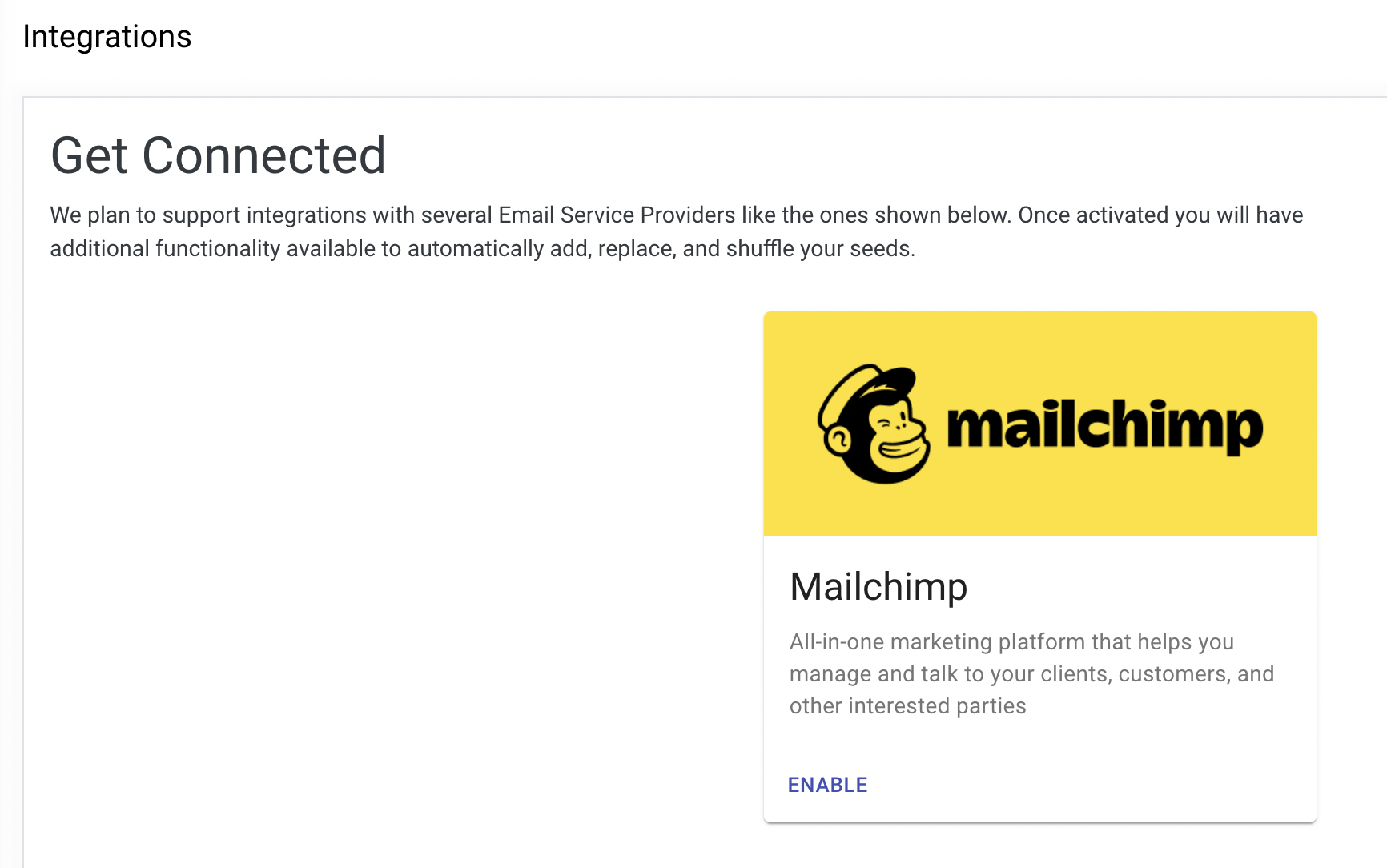
- Click Integrations option under the MyAccount section
- Click Enable on the Mailchimp card to setup the connection
- Enter your Mailchimp credentials
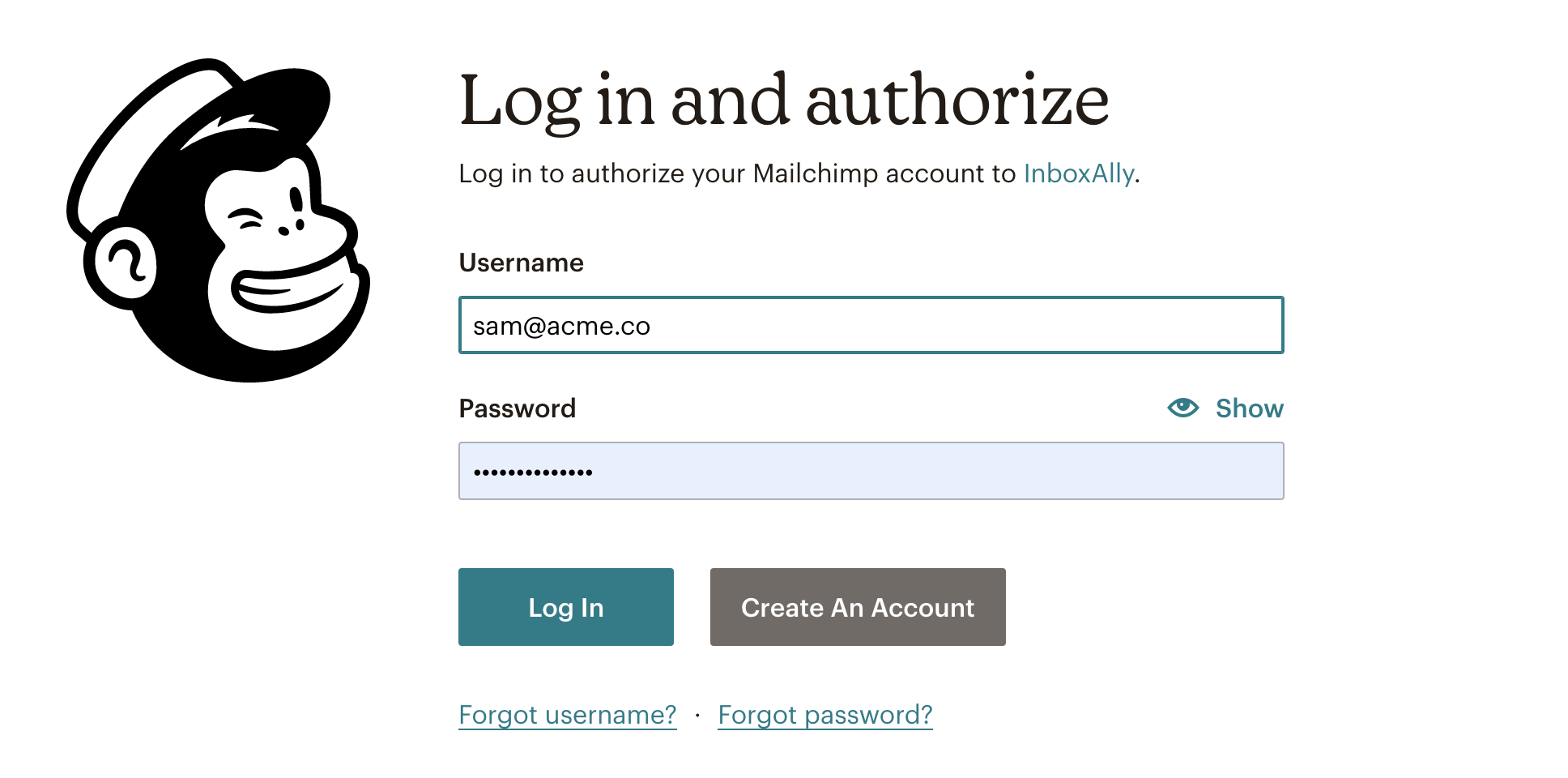
- Authorize the Integration

You’ll return to your InboxAlly account and see that the connection is now enabled.