

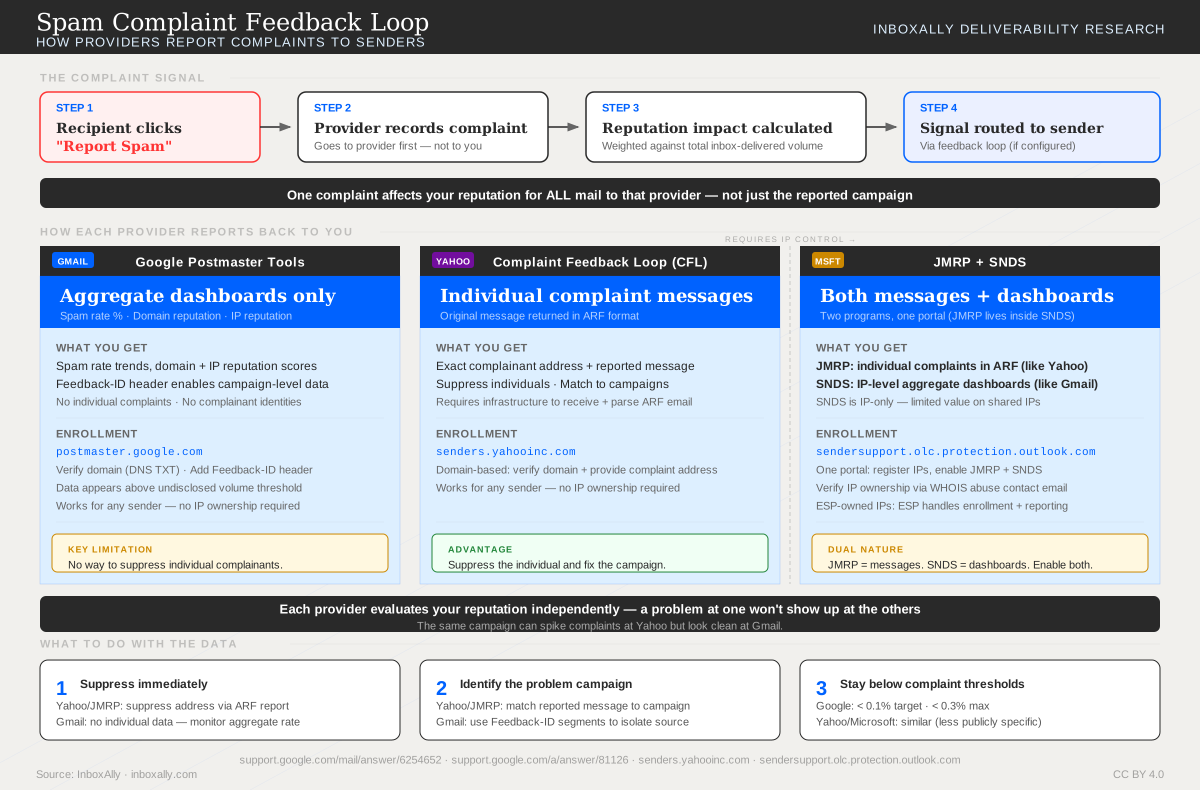
Gmail’s Feedback Loop (FBL) is a reporting feature in Google Postmaster Tools that surfaces aggregate reputation data for your sending domain — including spam complaint rates, domain reputation scores, and authentication status. Unlike traditional FBLs, it does not forward individual complaint messages or identify specific problematic sends; instead, it provides high-level trend data to help you monitor sending health over time.
How Providers Report Complaints
Gmail, Yahoo, and Microsoft each handle spam complaints differently. This diagram compares all three feedback mechanisms side by side.
Who is this relevant for?
Postmaster data is useful for any sender targeting Gmail, but it is not essential for lower-volume mailers. Google requires senders to exceed an undisclosed volume and spam complaint threshold before data becomes available.
How does Gmail Feedback Loop Help?
The Gmail FBL gives insight into your campaigns that might receive an extremely high number of spam reports from Gmail users.
Setup Requirements
In order to setup the Gmail FBL there are a few steps involved.
Pre-Check
Before you start, ensure you have setup and validated SPF, DKIM, and ReverseDNS settings. If these are not configured correctly, you will not be able to complete the FBL setup.
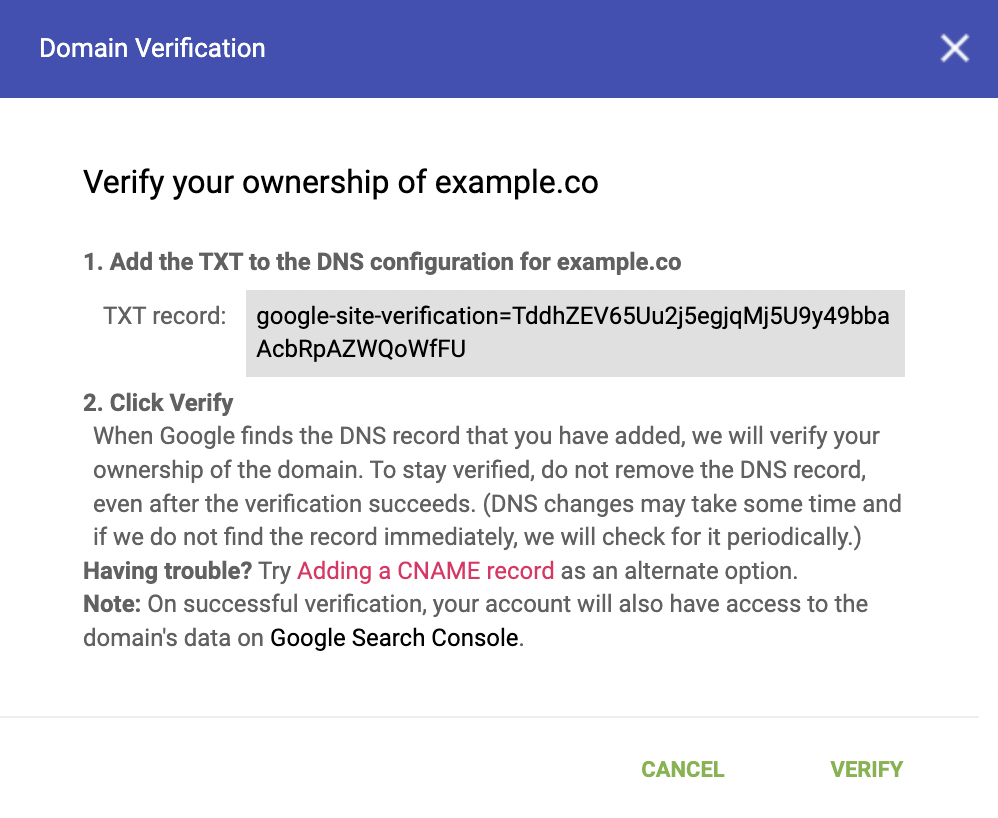
First, sign up with Gmail’s Postmaster tools. You can follow Google’s help to create your postmaster account. You will be asked to validate domain ownership so be sure to have the ability to add a TXT record to your DNS settings.
Google also has a list of best practices for described in their Gmail Bulk Sender guidelines.
Second, to implement the feedback loop, Gmail requires that you insert a special header called the Feedback-ID. It is necessary to add this Feedback-ID line in your email header and the method varies depending on what ESP or SMTP provider you are using for sending. If you don’t know how to set this, you will need to find the instructions from your vendor.
The header format should look as follows. You will always use the same SenderID and can vary the first three identifiers to align with your campaign. FBL data will be aggregated on each Identifier independently. This format also allows for the use of less than the 3 Identifiers, if needed.
Feedback-ID: a:b:c:SenderID
| Field | Description |
|---|---|
| a, b, c | Optional fields that can be used by the sender to embed up to 3 Identifiers (campaign/customer/other). These identifiers may change based on the attributes you wish to track. |
| SenderID | Mandatory unique Identifier (5–15 characters) chosen by the sender. It should be consistent across the mail stream. |
Examples of identifiers could be:
- campaign names or IDs
- segment names or IDs (new customer, etc)
- mail type names (newsletter, DRIP, notification, transactional, etc)
- customer types
| Example |
|---|
| cid-2343:sid-3454::example-co |
| holiday33::new-customers:example-co |
Data will not display if the SenderID is missing
Postmaster Dashboards
The most important indicators that Gmail’s Postmaster tool offers is the opportunity to track the percentage of spam complaints by domain name or sub-domain on a daily basis.
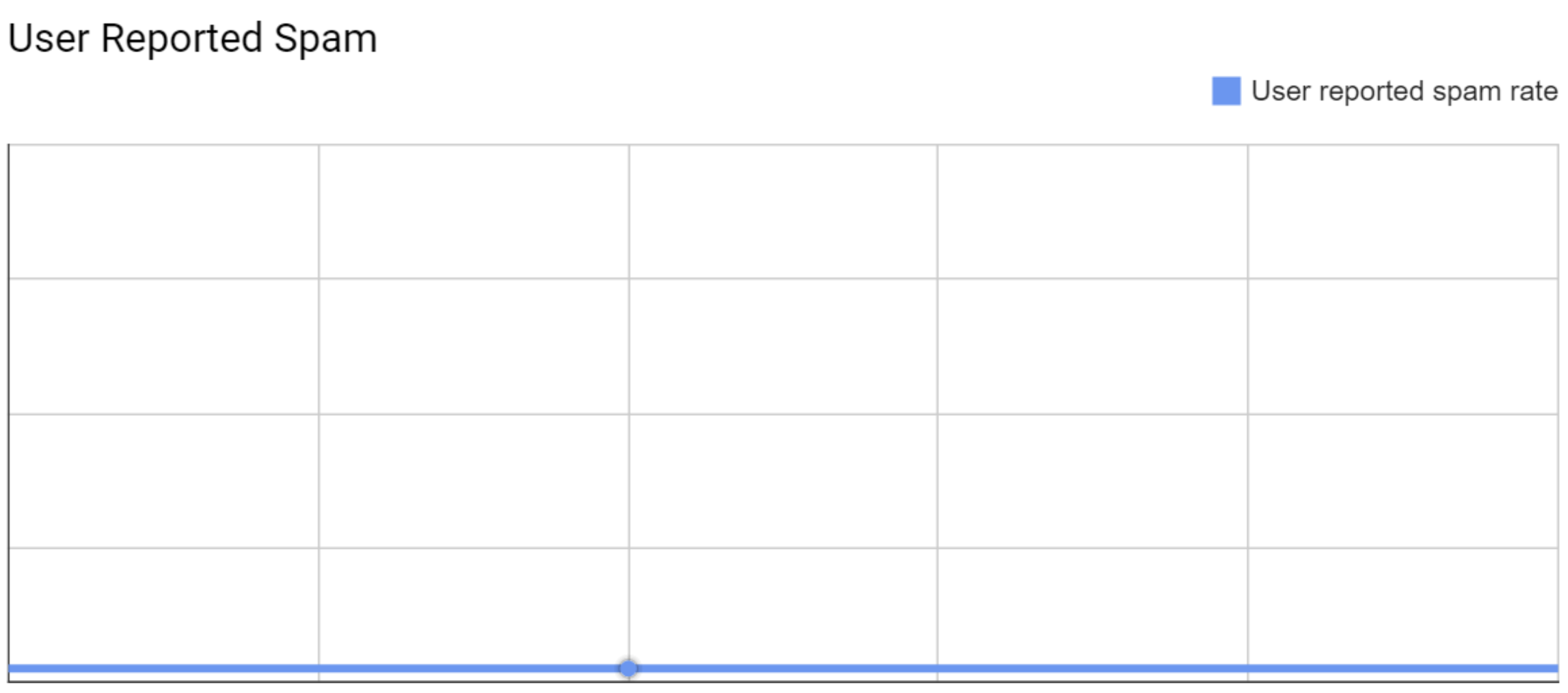
The full list of reports are described in the table below.
| Report | Description |
|---|---|
| Spam Rate | This is one of the most important indicators that Gmail’s Postmaster tool offers. It gives you the opportunity to track the percentage of spam complaints by domain name or sub-domain on a daily basis. |
| IP Reputation | The reputation of IPs on Gmail is: Bad, Low, Medium and High. |
| Domain Reputation | The reputation of domains on Gmail is: Bad, Low, Medium and High. |
| Feedback Loop | If you have correctly configured your Feedback-IDs, you can see the segments broken out to easily detect the sources of complaints in relation to your sending. |
| Authentication | This dashboard shows the percentage of emails that have been validated through the different authentication technologies like SPF or DKIM. |