

SNDS (Smart Network Data Services) shows how Microsoft scores your sending IPs — reporting reputation levels, spam complaint rates, and traffic volume per IP. JMRP (Junk Email Reporting Program) forwards copies of emails that Outlook.com users mark as junk, so you can identify and suppress complainers. Both programs are free and cover all Microsoft consumer mailboxes (Outlook.com, Hotmail, Live, and MSN).
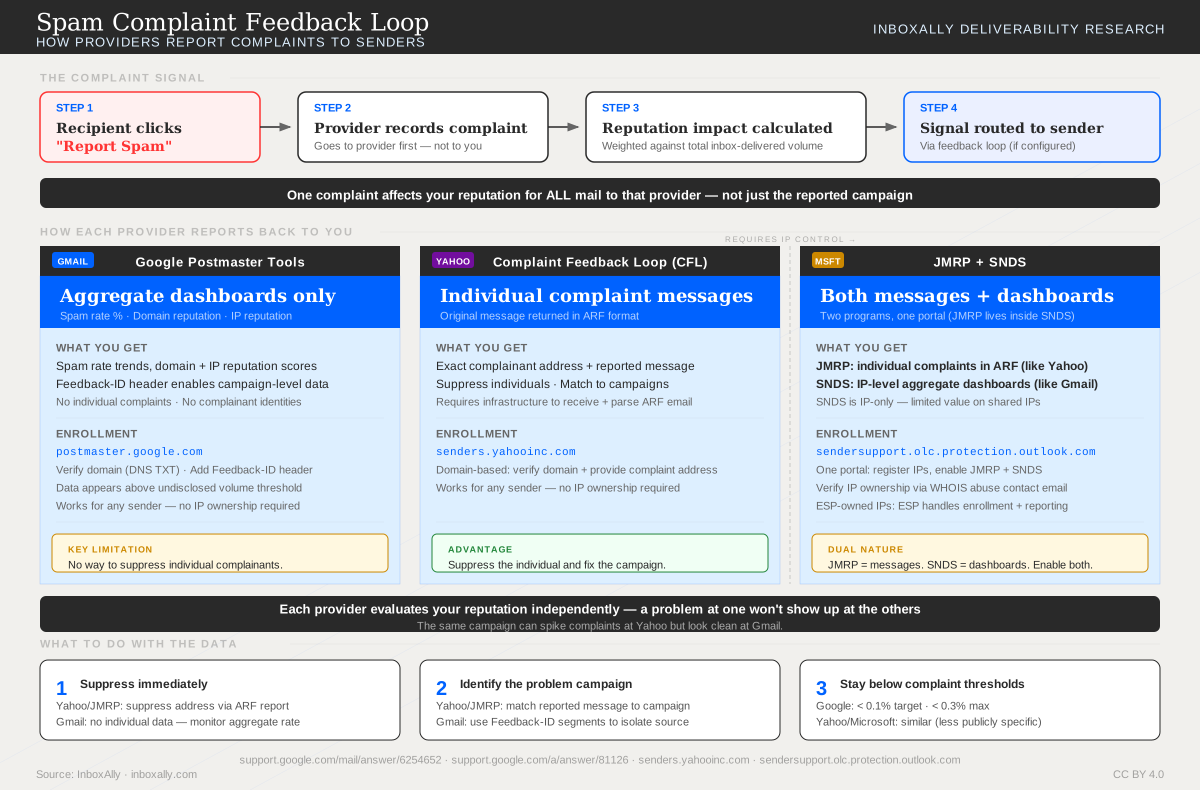
How Providers Report Complaints
Gmail, Yahoo, and Microsoft each handle spam complaints differently. This diagram compares all three feedback mechanisms side by side.
What is SNDS?
Smart Network Data Services (SNDS) offers insights into how Microsoft perceives your outbound email traffic. It provides metrics that help you troubleshoot and optimize your sending practices, including:
- IP address reputation scores
- Spam complaint rates
- Traffic volume by IP
- Junk mail filtering indicators
Access to this data allows you to proactively monitor sender reputation and avoid being filtered or blocked. For ongoing monitoring, consider using InboxAlly’s Domain Reports.
What is JMRP?
The Junk Email Reporting Program (JMRP) is Microsoft’s complaint feedback loop system. When a user marks your email as junk, JMRP forwards a copy of that message to a designated reporting address. JMRP helps you:
- Identify messages that trigger spam complaints
- Remove complainers from your lists
- Improve audience targeting and content strategy
Reducing complaint rates is key to maintaining long-term deliverability. Use InboxAlly’s Email Content Tester to optimize your email content for better inbox delivery.
How to Set Up SNDS
- Access the SNDS Portal
Visit the SNDS Portal. - Sign in with a Microsoft Account
Use any Microsoft account (e.g., Outlook.com or Hotmail) to access the dashboard. - Register Your Sending IPs
Add your IP addresses or CIDR blocks. Microsoft uses WHOIS or DNS records to verify that you control them. - Validate Ownership
Microsoft will send verification messages to standard administrative contacts such as abuse@yourdomain.com or postmaster@yourdomain.com. Confirm these to gain access. - Review Data
Once confirmed, SNDS will show daily summaries of email volume, complaint metrics, and filtering status for each registered IP.
How to Set Up JMRP
- Access the JMRP Registration Page
Visit the JMRP Registration Page. - Log in with Your Microsoft Account
Use the same account as for SNDS to manage both from a single profile. - Submit IP Addresses
Enter the IPs from which you send email. - Provide a Complaint Feedback Address
Use a monitored inbox such as abuse@yourdomain.com where complaint messages can be reviewed and triaged. - Verify Email Ownership
Microsoft sends a confirmation to the specified address. Once verified, you’ll begin receiving forwarded spam complaint messages.
Best Practices After Enrollment
- Monitor SNDS data regularly to catch early signs of deliverability issues.
- Set up automated workflows to process and react to JMRP complaint emails.
- Ensure your complaint feedback address is actively monitored by your compliance or deliverability team.
- Use SPF, DKIM, and DMARC authentication — Microsoft considers these signals when evaluating sender trustworthiness.
- Investigate any spikes in complaint rates or junk mail classification quickly to avoid deliverability degradation.
Troubleshooting Tips
- Didn’t receive confirmation emails?
Check that your abuse@ or postmaster@ addresses are live and have valid MX records. - Not seeing any data?
Your traffic volume to Microsoft domains may be too low, or your mail stream is currently clean and unflagged. - Blocked IPs?
Use the Microsoft Sender Support Form to request a delisting and provide remediation details.
For additional support, you can check your blacklist status using InboxAlly’s Spam Database Lookup tool. Start a free trial of InboxAlly to improve your inbox placement and manage your email deliverability effectively.